
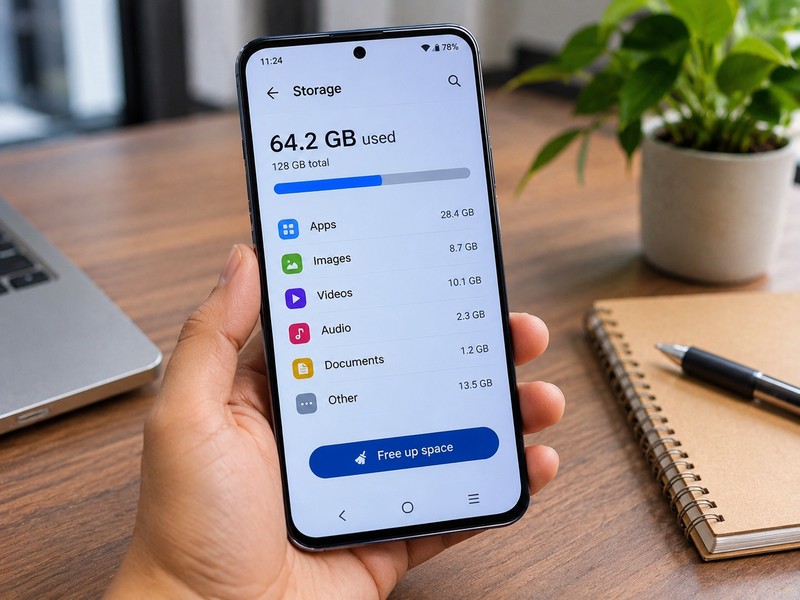
Open Settings > Storage to see what is using space, then delete unused apps, clear app cache, back up photos and videos to the cloud, and remove large files and old downloads. Using the free Files by Google app speeds this up with one-tap cleanup suggestions. Menu names differ slightly between Samsung, Pixel, Xiaomi, OnePlus and other brands, but the steps are the same.
12 Ways to Free Up Storage on Android at a Glance
| # | Method | Space you can free | Difficulty |
|---|---|---|---|
| 1 | Check what is using your storage | Shows where to start | Easy |
| 2 | Uninstall unused apps | Medium to high | Easy |
| 3 | Clear app cache | Low to medium | Easy |
| 4 | Use Files by Google cleanup | Medium | Easy |
| 5 | Delete large and duplicate files | Medium to high | Easy |
| 6 | Back up photos and videos to the cloud | High | Easy |
| 7 | Clean WhatsApp and other chat app media | High | Easy |
| 8 | Empty the Downloads folder | Medium | Easy |
| 9 | Remove offline music, videos and maps | Medium to high | Easy |
| 10 | Switch to Lite apps or web versions | Medium | Medium |
| 11 | Move files to an SD card or USB drive | High | Medium |
| 12 | Update the phone or reset as a last resort | Varies | Advanced |
1. Check What Is Using Your Storage
Go to Settings > Storage (on some phones, Settings > Battery and device care > Storage). You will see a breakdown by category such as apps, images, videos, audio, documents and system files. Start with the biggest category, since that is where you will free up the most space.
2. Uninstall Apps You Do Not Use
Apps and their data are often the largest storage hog, especially games and social media apps.
- Open Settings > Apps and sort by size or last used.
- Uninstall apps you have not opened in months.
- For apps you want to keep but rarely use, check if your phone offers an option to archive or offload the app, which removes the app but keeps your data.
You can always reinstall an app from the Play Store later.
3. Clear App Cache
Cached files help apps load faster but can grow to hundreds of megabytes over time. On modern Android versions, you clear the cache per app.
- Go to Settings > Apps and tap an app, such as Chrome, Instagram, YouTube or a game.
- Tap Storage (or Storage and cache), then Clear cache.
Avoid tapping Clear data unless you want to reset the app and lose its saved information, such as logins and offline downloads.
4. Use Files by Google for Quick Cleanup
The free Files by Google app scans your phone and suggests what to remove, including junk files, duplicate files, large files, unused apps and old screenshots.
- Install Files by Google from the Play Store (many phones already have it).
- Open the Clean tab.
- Review each suggestion and confirm before deleting.
Always read what is selected before you delete it.
5. Delete Large and Duplicate Files
In Files by Google or your phone’s own file manager, look for large videos, old screen recordings, installation (APK) files, and duplicate downloads. Sort by size to find the biggest files first and delete what you no longer need.
6. Back Up Photos and Videos to the Cloud
Photos and videos are usually the biggest users of storage. Back them up to a cloud service such as Google Photos, then free the space on your phone.
- Turn on backup in Google Photos > Profile > Photos settings > Backup.
- Wait until the backup is complete.
- Use Free up space in Google Photos to remove local copies that are safely backed up.
Before you delete anything, confirm the backup is complete and check your cloud storage limit, since the free plan has limited space and you may need to pay for more or use another backup, such as a computer or external drive.
7. Clean WhatsApp and Other Chat App Media
Messaging apps quietly save photos, videos, voice notes and documents from every chat and group.
- In WhatsApp, go to Settings > Storage and data > Manage storage.
- Review large files and files forwarded many times, then delete what you do not need.
- Turn off Media visibility (or auto-download of media) for groups to stop the buildup, and limit auto-download to Wi-Fi.
Telegram and other chat apps have similar storage settings, and Telegram lets you set automatic cache clearing.
8. Empty the Downloads Folder
Open your file manager and check Downloads. It often holds old PDFs, installers, images and videos you no longer need. Delete or move what you want to keep to your computer or cloud storage.
9. Remove Offline Music, Videos and Maps
Offline downloads are convenient but can take up gigabytes.
- Spotify, YouTube Music and Apple Music: remove old downloaded playlists and albums.
- YouTube, Netflix and other streaming apps: delete watched downloads.
- Google Maps: delete offline maps you no longer need from the offline maps section.
- Podcasts and audiobooks: remove finished episodes and books.
You can download them again later on Wi-Fi when you need them.
10. Use Lite Apps or Web Versions
Some social media and utility apps have lighter versions that use far less storage, and others work well in a browser. If an app has grown very large, try its lite version or use the website through Chrome instead.
11. Move Files to an SD Card or USB Drive
If your phone has a microSD slot, you can move photos, videos, music and documents to the card. Many phones no longer have a slot, but most modern Android phones support USB-C flash drives and external drives. Copy large files to the drive, check they open correctly, and then delete them from your phone.
12. Update Your Phone or Reset as a Last Resort
- Update Android and your apps. Updates can fix bugs that cause cache and system files to grow.
- Restart the phone. This clears temporary files and can free a small amount of space.
- Factory reset. If your phone is still full and slow after everything else, back up all your data first, then reset it to clear built-in clutter. Only do this after a complete backup.
Quick Tips to Keep Your Android Storage Free
- Turn on cloud backup for photos and videos from the start.
- Check storage once a month and delete junk files.
- Download large apps and games only when you really need them.
- Limit auto-download of media in chat apps.
- Choose a phone with enough storage next time. 128 GB is a minimum today, and 256 GB is safer if you shoot a lot of video.
Common Mistakes to Avoid
- Deleting photos before confirming they are backed up
- Tapping Clear data instead of Clear cache
- Installing random third-party “cleaner” or “booster” apps, which often show ads, collect data and add little value
- Deleting system files or folders you do not recognize
Frequently Asked Questions
Usually because of photos and videos, app data and cache, chat app media, and downloaded files. Checking Settings > Storage shows which category is the biggest.
Yes. Clearing cache removes temporary files only, and the app rebuilds them as needed. Apps may load a little slower the first time afterward.
Cache is temporary and safe to remove. Data includes your settings, logins and saved content, and clearing it resets the app.
A nearly full phone can slow down, so freeing space may help, especially if less than 10 percent of the storage is free.
Aim to keep at least 10 to 15 percent of the storage free for smooth performance and for system updates.
Most are not. Built-in tools and Files by Google do the same job without ads or extra permissions.
