
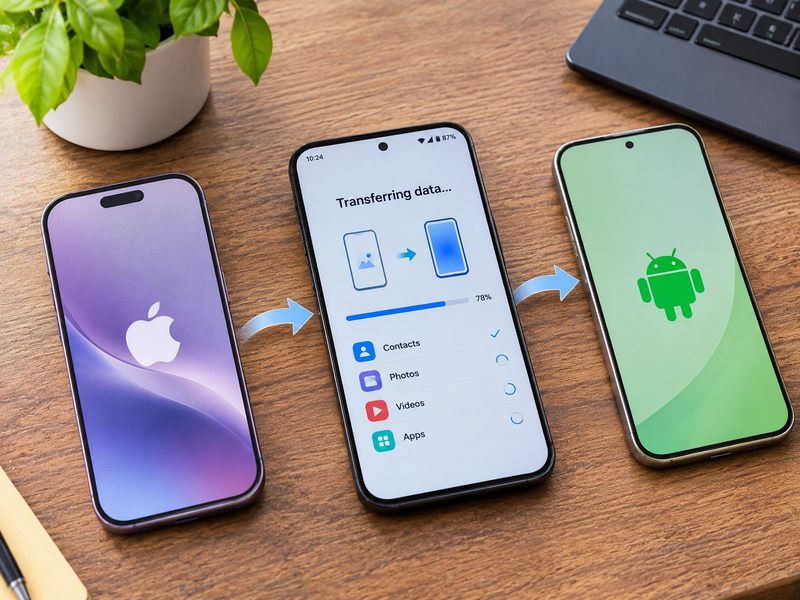
During setup of the new phone, choose the option to copy apps and data from your old phone, then connect the two phones with a cable or Wi-Fi and follow the on-screen steps. This works for Android to Android and from iPhone to Android. Google’s setup tool moves contacts, photos, apps, calendar and many settings, while WhatsApp chats, some app data and a few other items need extra steps. Always back up your old phone first and keep it until you confirm everything has moved.
Which Method Should You Use?
| Situation | Best method | Time |
|---|---|---|
| Android to Android, both phones nearby | Setup wizard (cable or wireless) | 15 to 60 minutes |
| Android to Android, old phone not available | Restore from Google backup | 15 to 60 minutes |
| Samsung to Samsung | Samsung Smart Switch | 15 to 60 minutes |
| iPhone to Android | Setup wizard with cable (or the Switch to Android tool) | 30 to 90 minutes |
| iPhone to Samsung | Samsung Smart Switch | 30 to 90 minutes |
| Only photos, videos and files | Google Photos, Google Drive or a computer | Varies |
| WhatsApp chats | WhatsApp’s own transfer or backup tools | 15 to 60 minutes |
Before You Start: Prepare Both Phones
- Charge both phones to at least 50 percent, or keep them plugged in.
- Back up the old phone. On Android, check Settings > Google > Backup, and back up photos in Google Photos. On iPhone, back up to iCloud or a computer.
- Update the software on both phones.
- Know your passwords. You will need your Google account password, Apple ID password and the passwords for apps such as banking and messaging apps.
- Remove or note down two-factor authentication for important accounts if codes are sent to your old number or app, so you do not get locked out.
- Use a USB-C cable if possible, since wired transfers are usually faster and more reliable. Keep the old phone’s SIM card until the transfer is done.
- Sign out of or deregister services that limit the number of devices, such as some banking and authenticator apps.
Part 1: How to Transfer Data from Android to Android
Method 1: Use the Setup Wizard (Best for Most People)
The setup process on a new Android phone can copy data directly from your old phone.
- Turn on the new phone and begin setup.
- When asked, choose Copy apps and data (or a similar option) and connect to Wi-Fi.
- Choose to copy from an Android phone.
- Connect the two phones with a USB cable if asked, or follow the on-screen steps for wireless transfer. You may need to confirm a code or scan a QR code on the old phone.
- Select what to copy: apps, contacts, messages, photos, calendar and settings.
- Wait for the transfer to finish and keep both phones close and plugged in. Do not use either phone during the transfer.
Apps are reinstalled from the Play Store, and some app logins may need to be entered again.
Method 2: Restore from a Google Backup
Use this if you no longer have your old phone or cannot connect them.
- On the new phone, choose Restore from a Google backup during setup (or sign in with your Google account).
- Pick the most recent backup for the old phone.
- Select which apps and settings to restore, then finish setup.
Check that your old phone had a recent backup before you reset or give it away. Backups typically include apps, contacts, call history, calendar, settings, and photos if backed up to Google Photos. They do not always include all app data, messages from every app or files stored only on the phone.
Method 3: Samsung Smart Switch
If you are moving to a Samsung Galaxy phone, Samsung Smart Switch can move data from another Android phone, from an iPhone, or from a computer, over a cable or wirelessly. It is preinstalled on Galaxy phones and is also available in the Play Store for the old phone. It can transfer contacts, messages, photos, videos, music, call logs, calendar, home screen layout and many settings. The same idea applies to other brands, many of which have their own transfer apps (for example, Mi Mover on Xiaomi phones and OnePlus Clone Phone).
Method 4: Transfer Files Manually
For specific files such as photos, videos and documents:
- Copy them to a computer with a USB cable, then copy them to the new phone.
- Upload them to Google Drive or Google Photos from the old phone and download them on the new one.
- Use a USB-C flash drive or an SD card if your phone supports it.
- Use Quick Share (Nearby Share) for sending files directly between nearby Android phones.
Part 2: How to Transfer Data from iPhone to Android
Method 1: Use the Android Setup Wizard with a Cable
Most new Android phones can copy data from an iPhone during setup. A cable gives the most complete and reliable transfer.
- Turn on the new Android phone and begin setup. When asked how to copy data, choose iPhone.
- Connect the iPhone to the Android phone with a USB cable (a USB-C to Lightning or USB-C to USB-C cable, depending on your iPhone).
- On the iPhone, tap Trust when asked and enter your passcode.
- Select the data to copy, such as contacts, photos, videos, calendar, messages and some apps. Then start the transfer.
- Finish setup and sign in to your accounts.
Phone makers occasionally update the setup flow, so the exact wording may differ. If you skipped this step during setup, you can usually still use Switch to Android from Google or the brand’s own transfer app (such as Samsung Smart Switch) later.
Method 2: Use Samsung Smart Switch (iPhone to Galaxy)
In Smart Switch, you can connect with a cable, transfer wirelessly, or import from iCloud backup by signing in with your Apple ID. Choose the data types you want, such as contacts, calendars, messages, photos, music, videos, call logs and alarms, and start the transfer.
Method 3: Move Contacts, Calendar and Photos with Online Accounts
Contacts and calendar
- If your contacts are in iCloud, you can export them as a vCard file from iCloud.com and import the file into Google Contacts on the Android phone.
- Alternatively, add your Google account to your iPhone (Settings > Contacts > Accounts), turn on sync for contacts and calendars, and they will appear on your Android phone when you sign in.
Photos and videos
- Install Google Photos on the iPhone, sign in, and turn on backup. Then sign in to the same account on Android.
- Or use Apple’s data and privacy page to request a copy of your photos and download them to a computer, then move them to Android.
- You can also copy photos from iPhone to a computer and then to the Android phone.
Music, files and documents
- Upload files to Google Drive, or use a USB cable and a computer.
- Apple Music and Spotify work on Android, so sign in with the same account. Purchased iTunes music without DRM can be copied manually.
Method 4: iMessage and Messages
Before you remove your SIM card from your iPhone, turn off iMessage (Settings > Messages > iMessage), and if you use FaceTime, turn that off too. This helps make sure text messages from iPhone users arrive on your Android phone. If you already moved your SIM and are missing texts, Apple provides a tool to deregister iMessage on its website.
What Transfers and What Does Not
| Data | Android to Android | iPhone to Android |
|---|---|---|
| Contacts | Yes | Yes |
| Calendar | Yes | Yes |
| Photos and videos | Yes | Yes |
| Text messages (SMS) | Usually | Often, depending on method |
| Apps | Reinstalled from Play Store | Same apps reinstalled if available on Android |
| App data and logins | Partly | Mostly no. Sign in again |
| WhatsApp chats | Needs WhatsApp transfer or backup | Needs WhatsApp’s move tool |
| Paid app purchases | Tied to your Google account | iOS purchases do not carry over |
| Apple-only services | Not applicable | Not available (iMessage, FaceTime on Android) |
| Passwords | Via Google Password Manager | Export from iCloud Keychain or use a password manager |
How to Transfer WhatsApp Chats
Android to Android: Use WhatsApp’s Chat transfer feature or a Google Drive backup.
- On the old phone, open WhatsApp > Settings > Chats > Chat backup and back up to Google Drive.
- On the new phone, install WhatsApp, verify the same phone number, and tap Restore when asked.
iPhone to Android: WhatsApp supports moving chats from iPhone to many Android phones with a cable or QR code in the setup process, and from iPhone to Samsung through Smart Switch. Requirements, such as app version and Android version, change over time, so follow the steps in WhatsApp’s official help page. iCloud chat backups cannot be restored directly on Android.
Transfer Your Passwords, Authenticator Apps and Banking Apps
- Turn on Google Password Manager or move to a password manager you trust before you switch.
- Move authenticator apps carefully. Many apps need you to export or re-add the accounts, and some require a QR code from each service. Do not wipe the old phone before you confirm your logins work.
- Banking and payment apps often require re-registration with your phone number and a verification step, so allow extra time. Contact your bank if you have problems.
After the Transfer: Checklist
- Check contacts, calendar, photos, messages and apps.
- Sign in to important apps and test banking, email and messaging.
- Confirm your two-factor authentication works.
- Set up fingerprint or face unlock.
- Check that your photo backup is working.
- Keep the old phone for a week or two before you reset or sell it.
- When you are sure, sign out of your accounts and factory reset the old phone.
Common Problems and Fixes
- Transfer is stuck or slow: use a good-quality cable, keep both phones unlocked, plugged in and nearby, and restart both phones and try again.
- Some apps did not copy: install them from the Play Store and sign in again.
- Photos are missing: check whether your Google Photos backup finished on the old phone, and check your Google account storage.
- Not receiving texts from iPhone users: make sure iMessage is turned off for your number.
- Contacts are duplicated: use the merge and fix option in Google Contacts.
- No cable or adapter: use a wireless method, an online backup, or a computer.
Frequently Asked Questions
The setup wizard on the new phone, using a cable or wireless transfer, is the easiest way. If you cannot connect the phones, restore from a Google backup.
Yes. Most brands offer a transfer app, such as Samsung Smart Switch, and Google's Switch to Android option. You can also move contacts, photos and files using online accounts or a computer.
Apps do not transfer directly. The setup tool can suggest and install Android versions of apps you use, but you will need to sign in again, and paid iOS apps are not carried over.
Yes, in most cases, using WhatsApp's official move tool or Samsung Smart Switch, but there are version and setup requirements. Check WhatsApp's help page before you start.
It depends on how much data you have and the method. Typically 15 minutes to 1.5 hours, longer for large photo and video libraries.
